


Further news are published in TrueCafe Blog
| 01 Mar 2013 | |
TrueCafe 6.0 is released | |
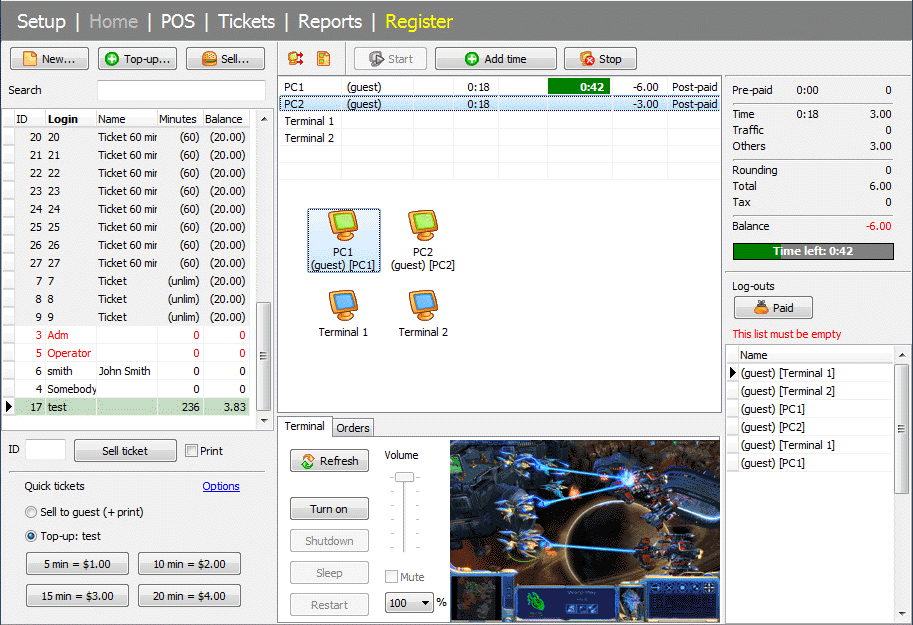 |
TrueCafe 6.0 is released. |
| 13 Nov 2012 | |
PayPal and credit cards (Wi-Fi) | |
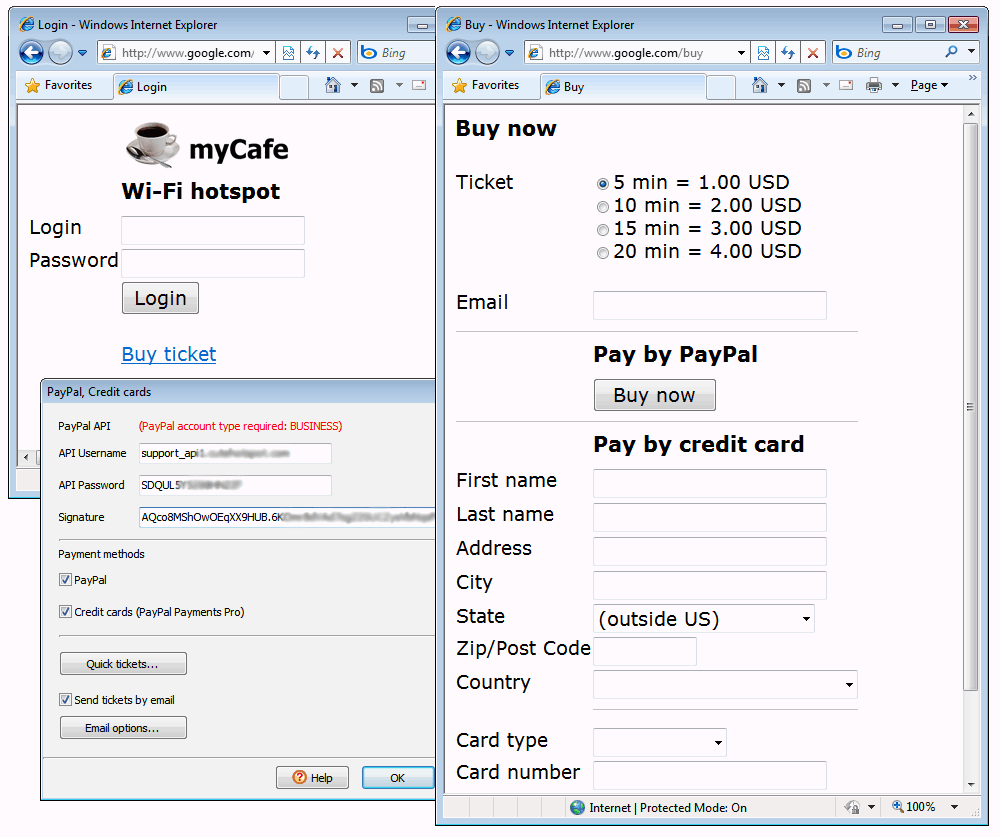 |
Let your customers buy tickets via PayPal or credit cards (via Wi-Fi module only at the moment). In order to accept payments, you need a BUSINESS PayPal account. PayPal Payments Pro option has to be enabled to support credit cards. |
| 02 Nov 2012 | |
TrueCafe Client protection | |
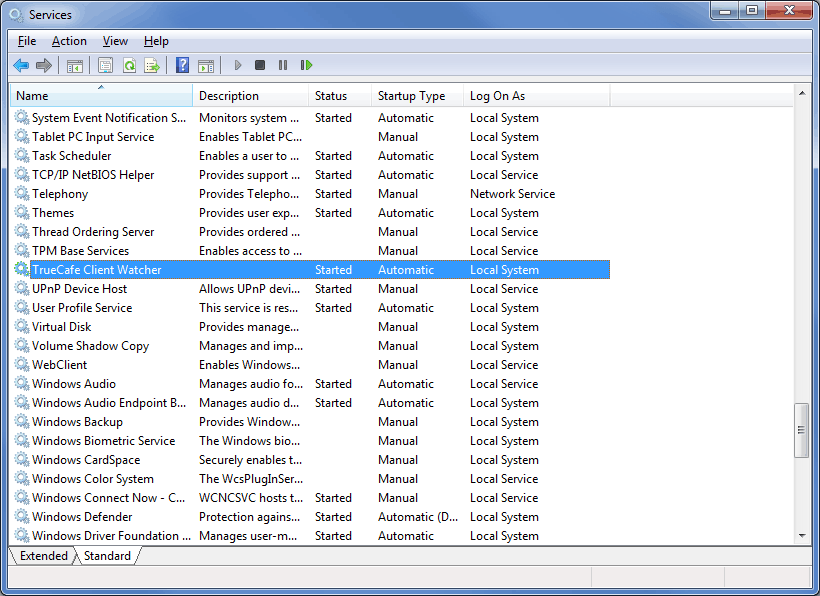 |
If a customer terminates TrueCafe Client with any process kill tool, TrueCafe Client Watcher system service starts it again in a few seconds. |
| 14 Aug 2012 | |
Quick tickets | |
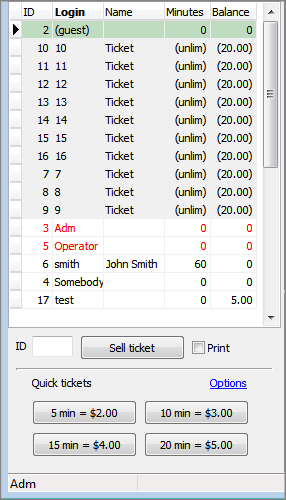 |
Create, sell and print tickets with one click. |
| 08 Aug 2012 | |
Minutes on balance | |
 |
Keep an exact minutes number besides the money deposit on any customer account. |
| 07 Aug 2012 | |
Wi-Fi page editor | |
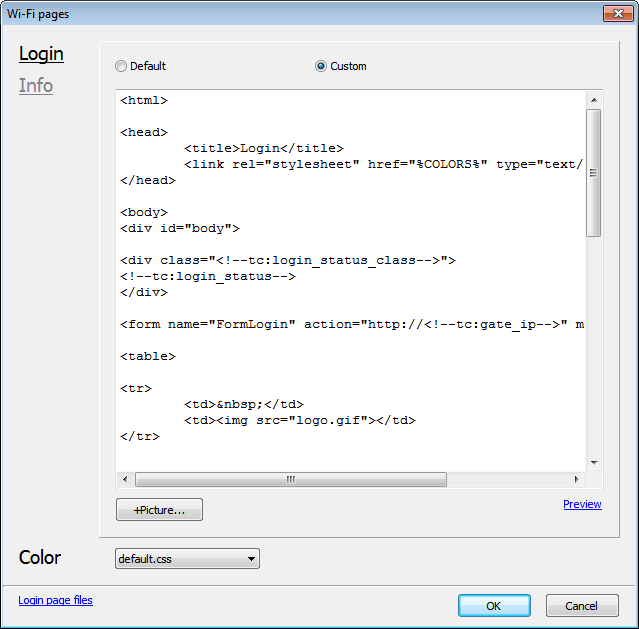 |
Customize your Wi-Fi login and info pages. Change text, select a style, add pictures. |
| 07 Jun 2012 | |
TrueCafe 5.1 is released | |
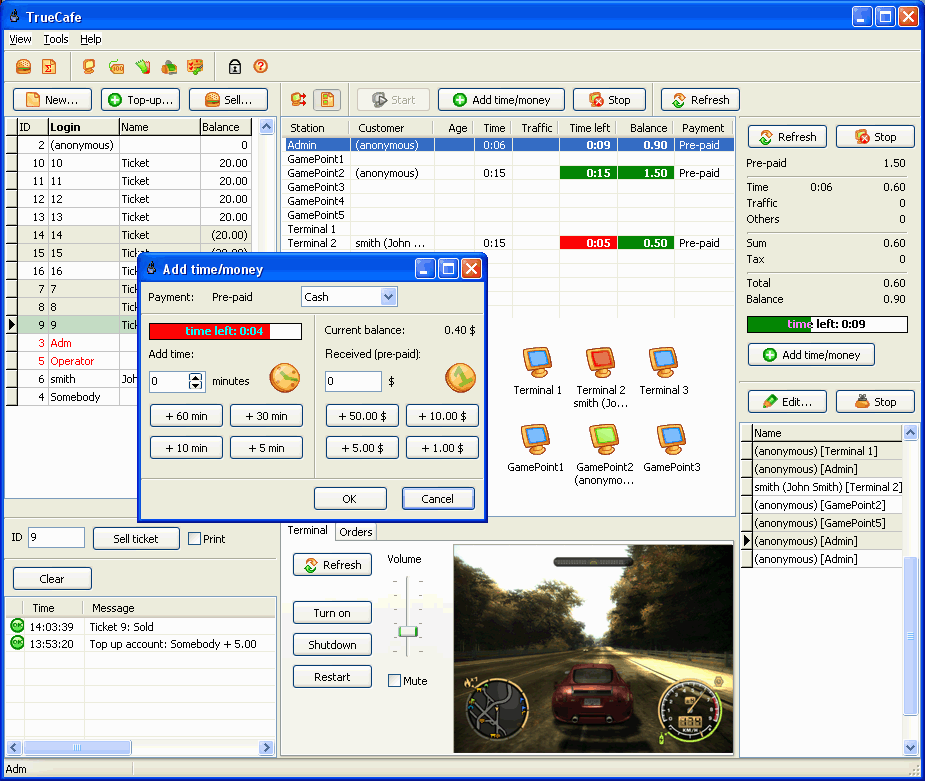 |
TrueCafe 5.1 is released. |
| 15 Arp 2012 | |
New connection wizard | |
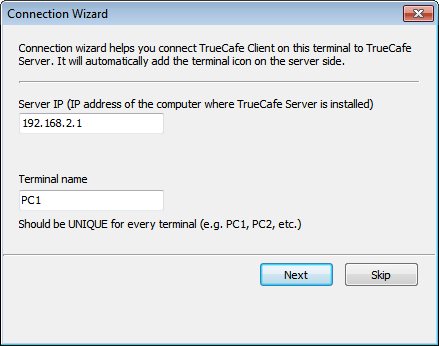 |
Specify a server IP and a unique terminal name when you connect a terminal computer to your server. |
| 14 Apr 2012 | |
Terminal name on login screen | |
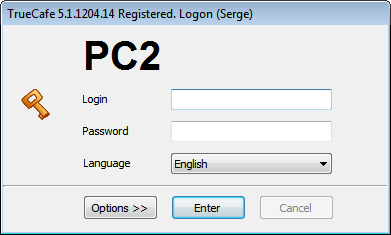 |
Display a terminal name on the TrueCafe Client login window. |
| 30 Dec 2011 | |
Wi-Fi setup wizard | |
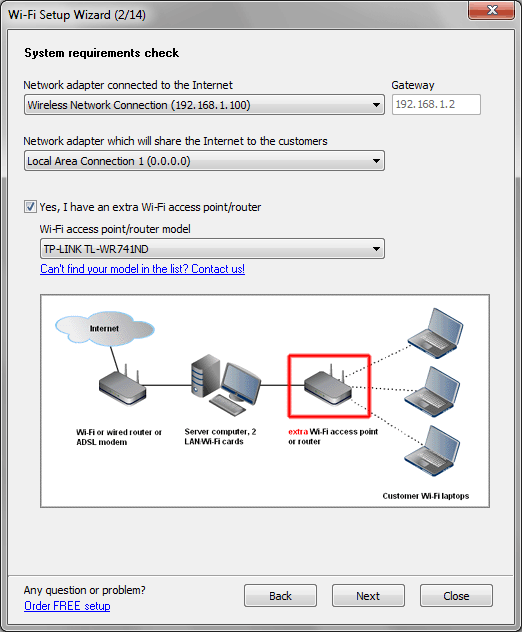 |
Wi-Fi setup wizard is a step-by-step guide which helps you set up your Wi-Fi billing network and software. |
| 11 Dec 2011 | |
TrueCafe 5.0 is released | |
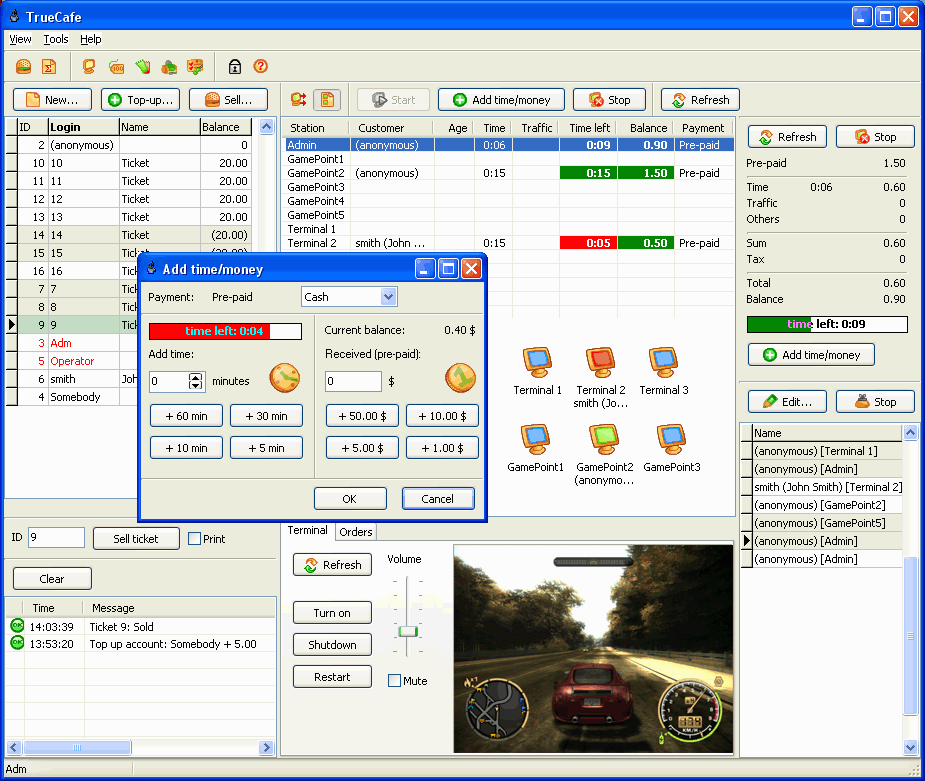 |
TrueCafe 5.0 is released. |
| 01 Nov 2011 | |
Ticket time of day limit | |
 |
Specify time of day limit for your tickets. If time of day is specified, a customer can't log in using this ticket at the other time. |
| 10 Oct 2011 | |
Customer search | |
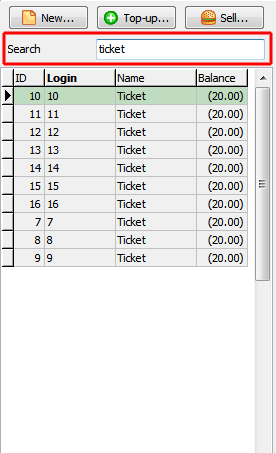 |
Search the customers typing id, login or name above the customer list. |
| 30 Sep 2011 | |
Ticket traffic limit | |
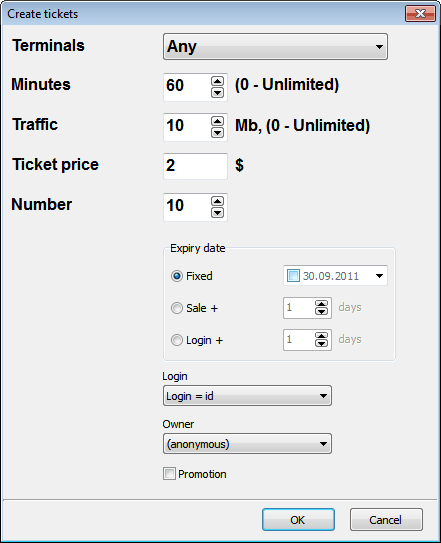 |
Specify traffic limit in Mbytes when you create pre-paid tickets. When the limit is over, the customer session is stopped even if some time is still left on the customer's balance. |
| 19 Sep 2011 | |
Cash drawer support | |
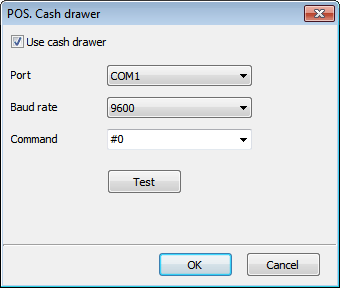 |
Use TrueCafe main menu > Tools > POS. Cash drawer to connect program to your cash drawer. Cash drawer opens when you change a customer balance or start/extend/stop customer sessions. |
| 08 Sep 2011 | |
Import customers | |
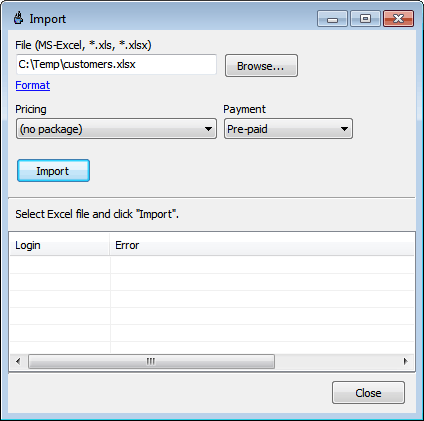 |
Right click on the customer list, select "Import" to import your customers from Excel file. |
| 17 Jun 2011 | |
Quick setup | |
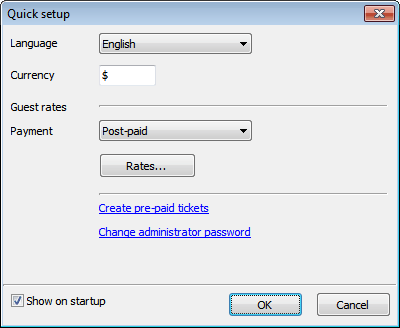 |
Use Quick setup screen to configure base options when you install the program: change currency, setup guest rates, create tickets, change administrative password, etc. |
| 16 May 2011 | |
More Wi-Fi laptops in every license | |
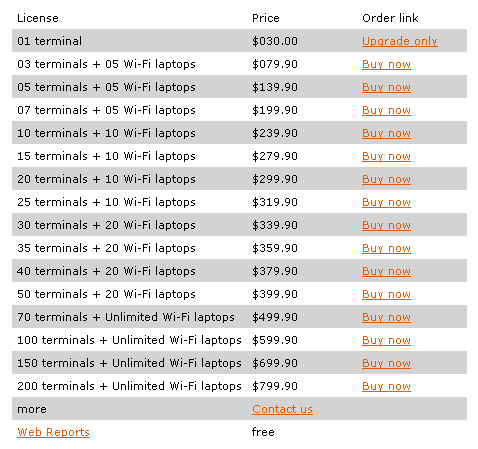 |
Wi-Fi laptops doesn't count in terminal number from now. When you purchase a license, you get a number of extra Wi-Fi connections for free. |
| 11 May 2011 | |
TrueCafe 4.6 is released | |
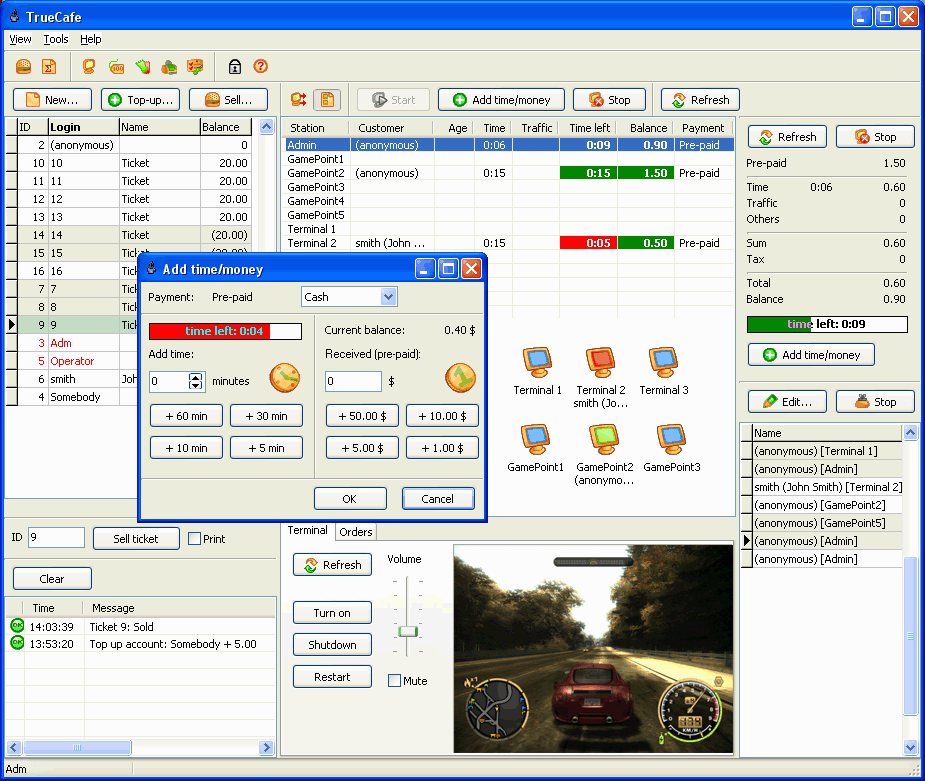 |
TrueCafe 4.6 is released. |
| 29 Mar 2011 | |
Print options screen | |
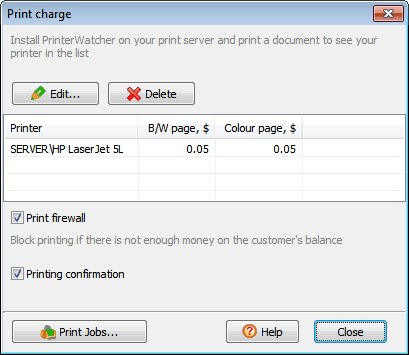 |
Configure all your print options, such as monochrome/colour page rates, print firewall and confirmation on the same screen: TrueCafe main menu > Setup > Print billing Available in the latest beta version |
| 03 Mar 2011 | |
Advertisement | |
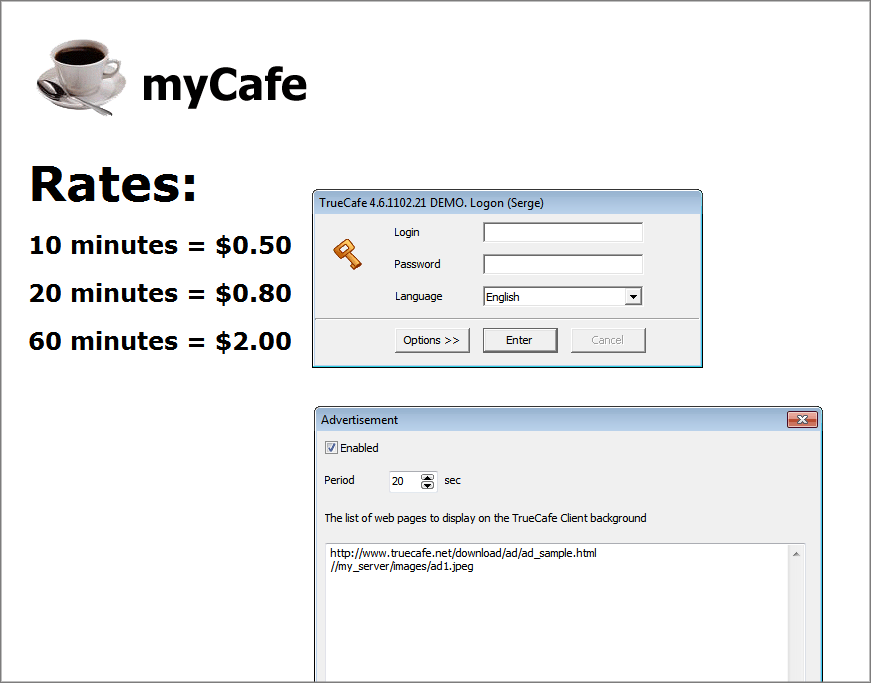 |
Display advertisement on your terminals on the TrueCafe Client background. An advertisement can be a web page or picture. Use TrueCafe main menu > Setup > Advertisement to configure the ad list and display interval. Available in the latest beta version |
| 29 Dec 2010 | |
Wi-Fi/Desktop customers | |
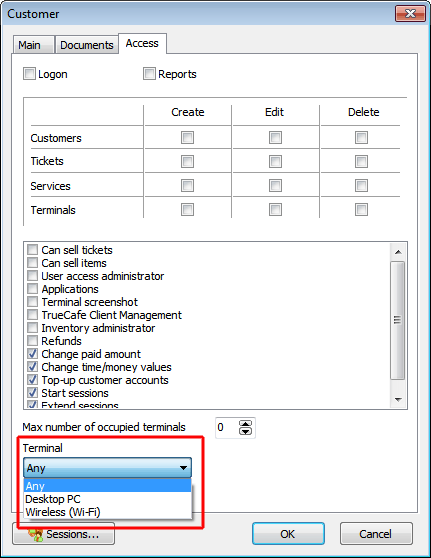 |
Specify whether a customer is allowed to log in to desktop or Wi-Fi or any terminals. Available in the latest beta version |
| 17 Dec 2010 | |
Custom ticket layout | |
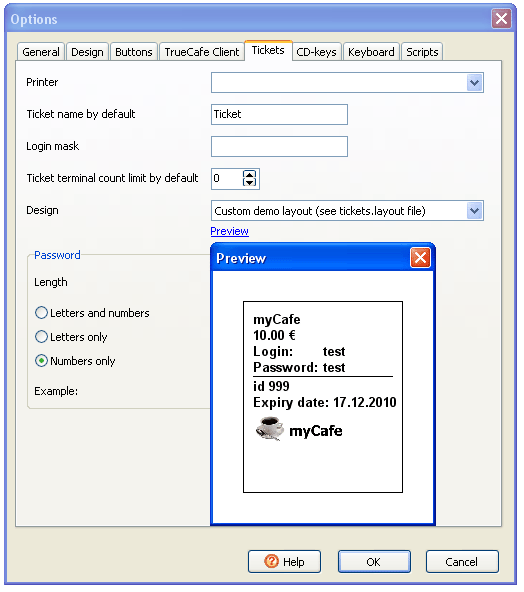 |
Customize your ticket print layout, add/remove captions, add your cafe logo, etc. Edit tickets.layout file in the TrueCafe folder. Preview ticket layouts. Available in the latest beta version |
| 30 Nov 2010 | |
Terminal security | |
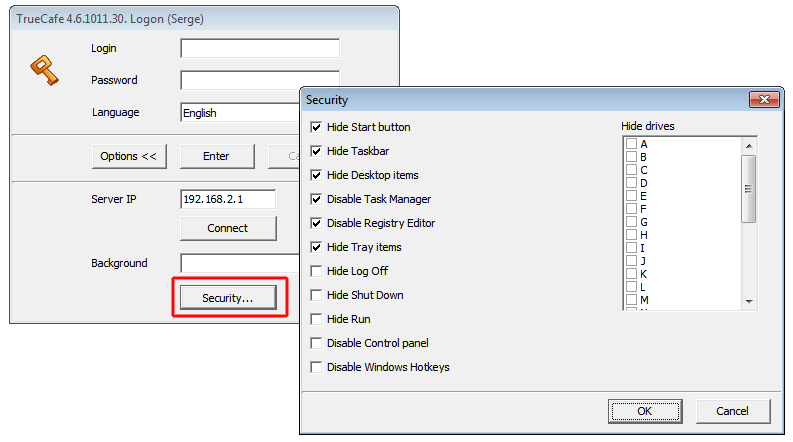 |
Hide Windows Start button, desktop items, taskbar, etc. - now from the TrueCafe Client side. Available in the latest beta version |
| 04 Nov 2010 | |
Export to CSV | |
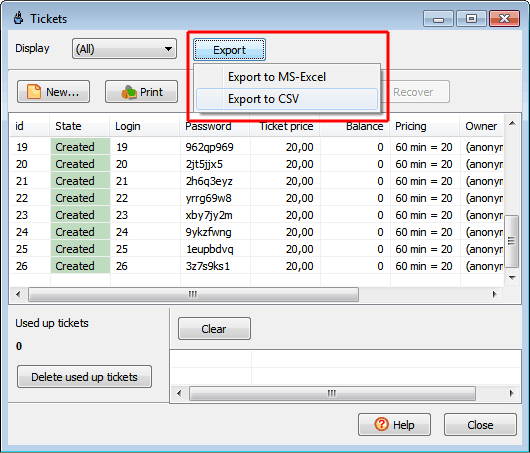 |
Export most of the lists (tickets, sales, etc.) to CSV-files, which you can open in Open Office and other programs. Available in the latest beta version |
| 27 Oct 2010 | |
Cut tickets | |
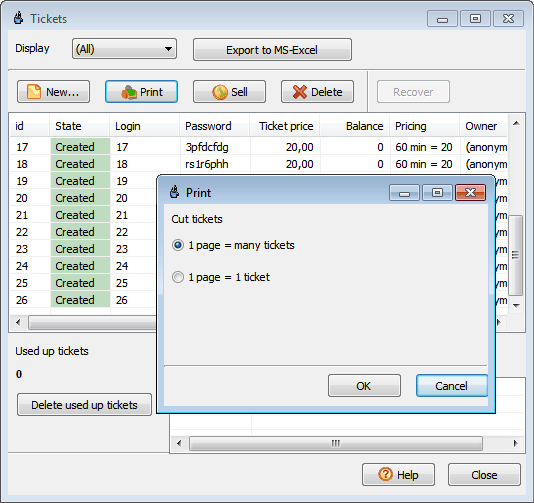 |
Print a number of tickets on the same page (e.g. A4) or cut every ticket (1 page = 1 ticket). The latter approach is useful when you print tickets on the receipt printer. Available in the latest beta version |
| 29 Jul 2010 | |
TrueCafe 4.5 is released | |
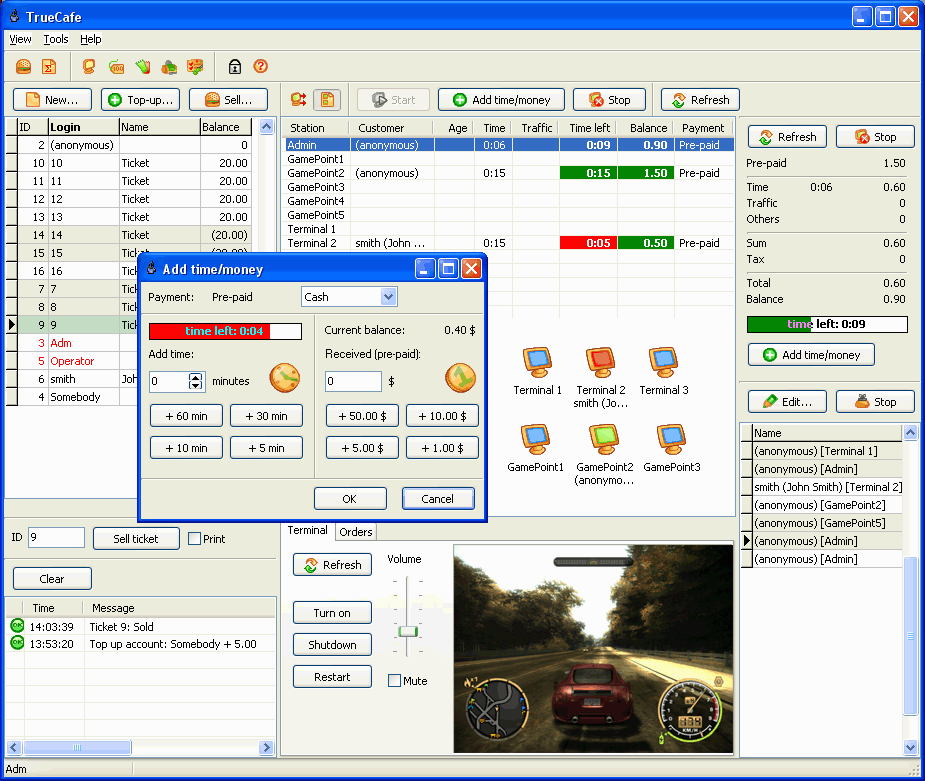 |
TrueCafe 4.5 is released. |
| 26 Jul 2010 | |
Lock screen when disconnected | |
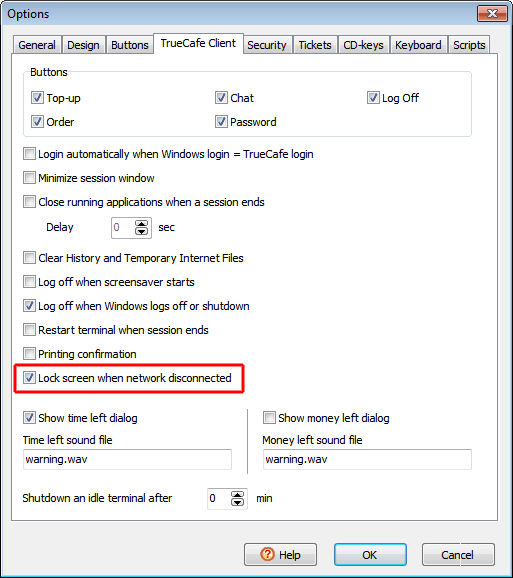 |
Lock a terminal screen when network disconnection detected. Available in the latest beta version |
| 10 Jun 2010 | |
Scan customer documents | |
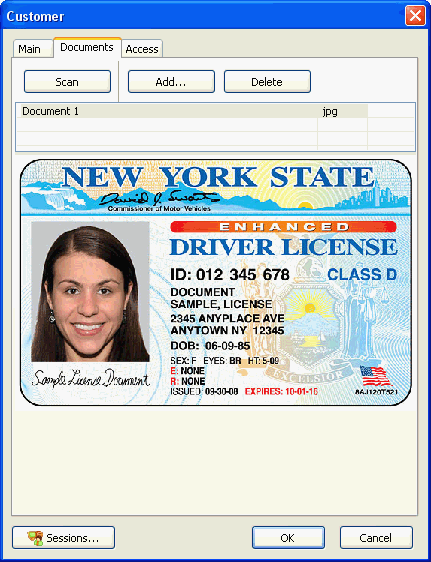 |
Scan customer documents such as a photo, passport, driving license, etc. Click on the customer icon to scan a photo or use the Documents tab to scan any other documents. Available in the latest beta version |
| 02 Jun 2010 | |
Game console billing | |
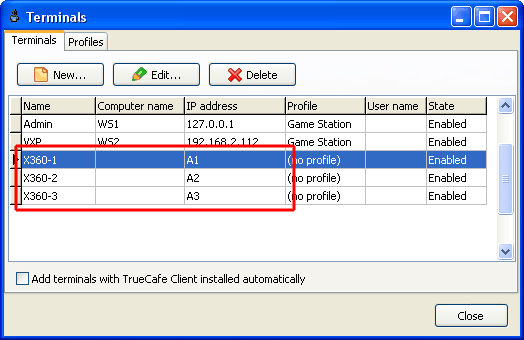 |
Use TrueCafe with your game consoles such as XBox, PlayStation, etc. (X10 modules are required). |
| 19 May 2010 | |
Payload report | |
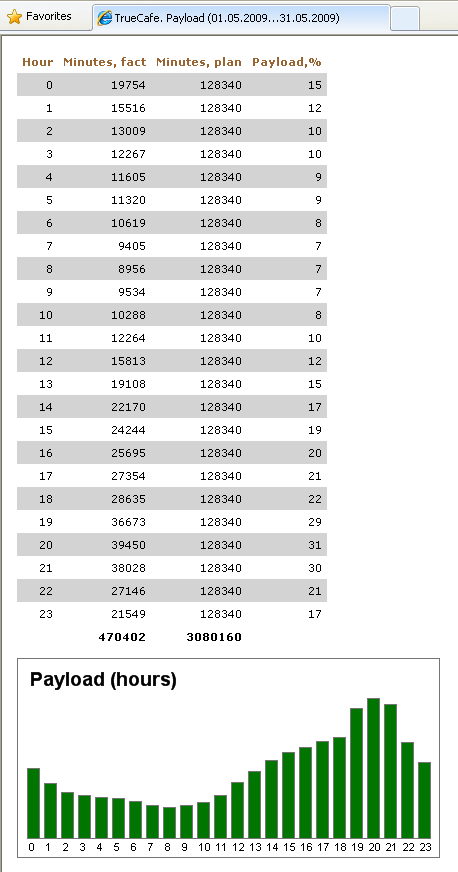 |
Analyze your cafe computers payload using Web Reports > Payload report. Available in the latest beta version |
| 19 Apr 2010 | |
Ping monitor | |
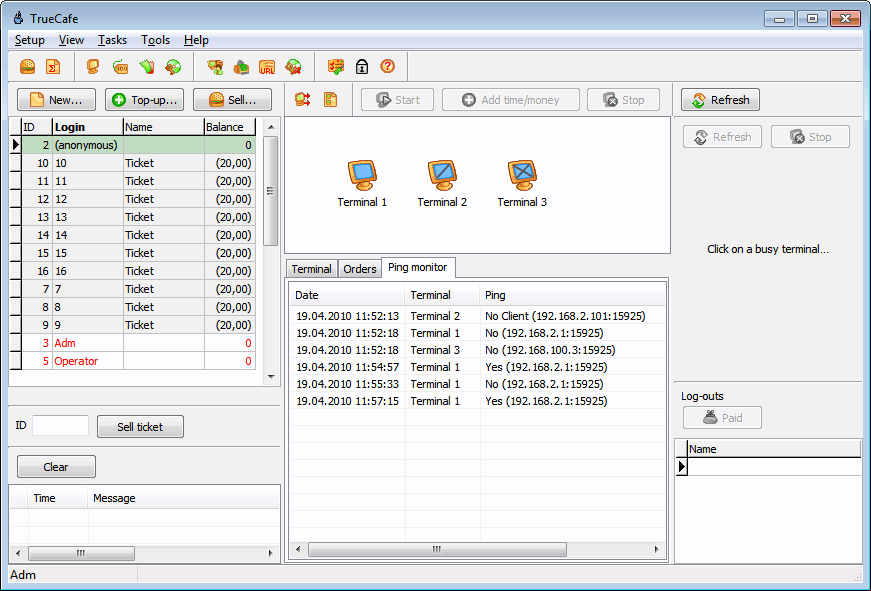 |
Monitor your Internet cafe terminals state and get a notification when a terminal is off or TrueCafe Client is not running. Available in the latest beta version |
| 25 Mar 2010 | |
Reports by email | |
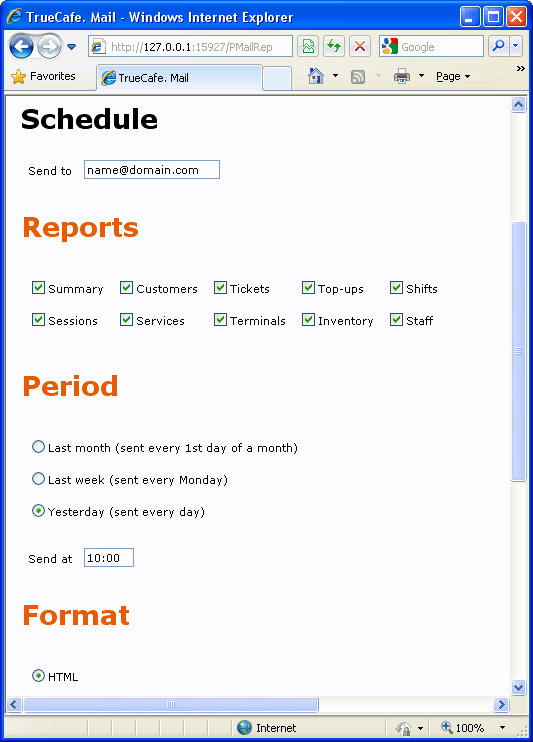 |
Receive your Internet cafe reports automatically by email every day, every Monday or every 1st day of month. Open TrueCafe Web Reports, Mail options, specify which reports you would like to get and select time period (last month, last week, yesterday). Enter your email address and your mail server parameters. Click the Send now button to test mail sending. Available in the latest beta version |
| 15 Feb 2010 | |
Club map | |
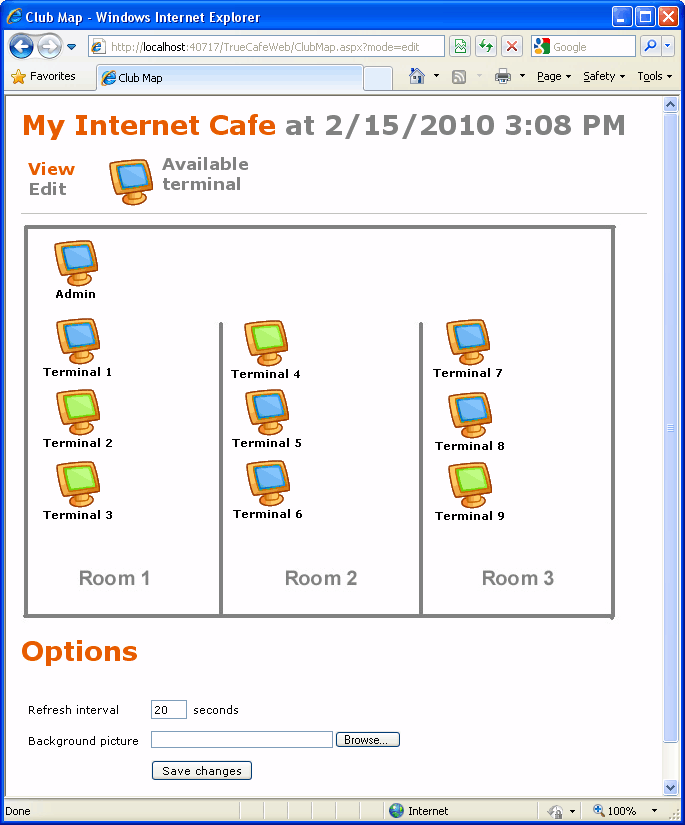 |
Setup the info display at your shop or cafe receiption so that an incoming customer can locate an available terminal himself. Use your Internet browser to open TrueCafe Web Access and select Club Map main menu item. Click the Edit link to change options and move the terminal icons on the map. Upload your club map layout picture. Available in the latest beta version |
| 09 Feb 2010 | |
Wi-Fi billing setup on Windows 7 | |
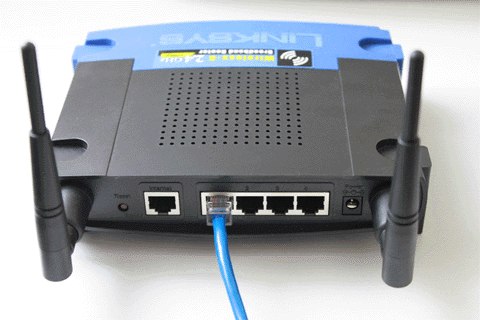 |
There are some issues when you setup Wi-Fi billing on Windows 7 different from Windows XP. |