
|
Friendly Cyber Cafe SoftwareDocumentation |
Customer Sessions
Pre-paid session has a time limit, depending on the customer balance. A pre-paid session is automatically stopped when the time is over.
Post-paid session doesn't have any time limit unless an operator specifies it. The customer is charged after he/she logs out.
Customer starts session from terminal
Use a customer login/password to login from TrueCafe Client login screen. Only member sessions with positive balances can be started in this way. Guest sessions can only be started by an operator from the server.
Read more about TrueCafe Client
Operator starts session from server
1. Guest session: double-click on a terminal icon.
2. Member session: drag-n-drop a customer from the customer list onto a terminal icon.
Select rates if none is set by default for the customer and enter the customer password if the account is password-protected.
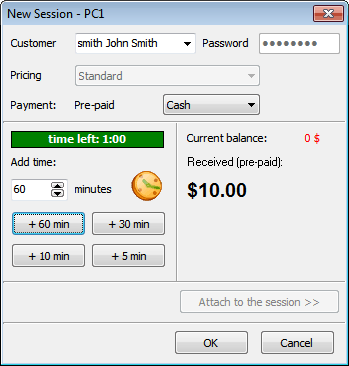
1) Pre-paid. Specify pre-paid time and the collect corresponding cash amount:
2) Post-paid. Set time limit if needed. No cash is collected:
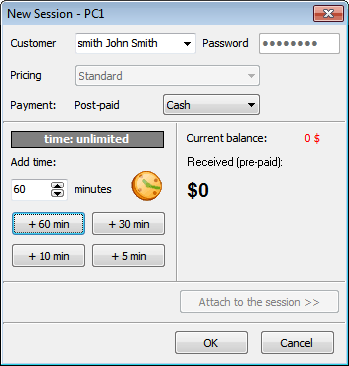
You can customize the add time buttons in options.
Monitor sessions
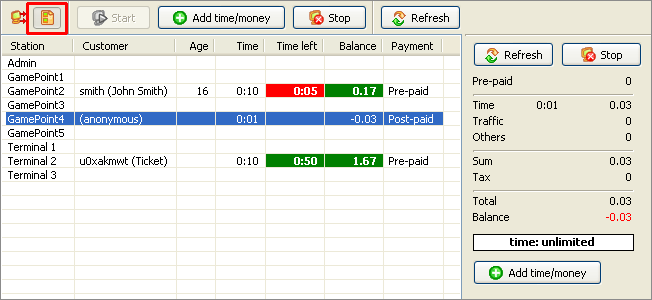
Press the List button to switch between the terminal icons and the list:
Extend session (add time)
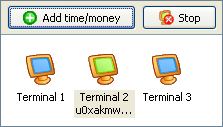
Press the "Add time" button to extend a session:
Sell item
Use the Sell terminal popup menu to add any service/product to a session:
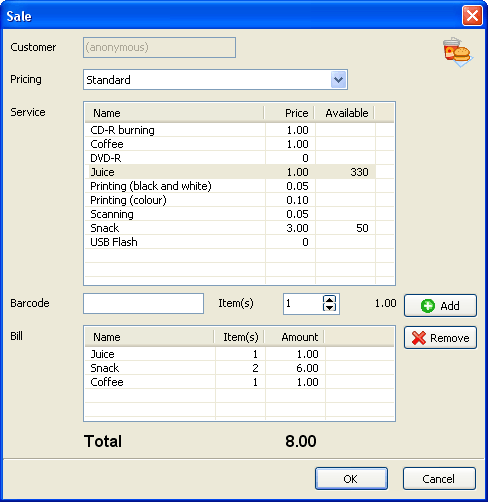
Customer stops session
Use the Log off button in TrueCafe Client to stop your session.
Read more about TrueCafe Client
Operator stops session
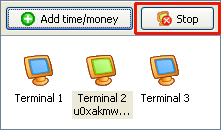
Select a terminal icon or session in the list and press the Stop button:
Close session
Logged out post-paid sessions are displayed in the Log outs list.
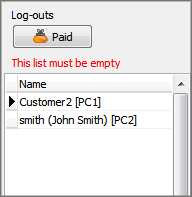
Double-click on a session, collect required cash (or accept a credit card), give change and press the Paid button.
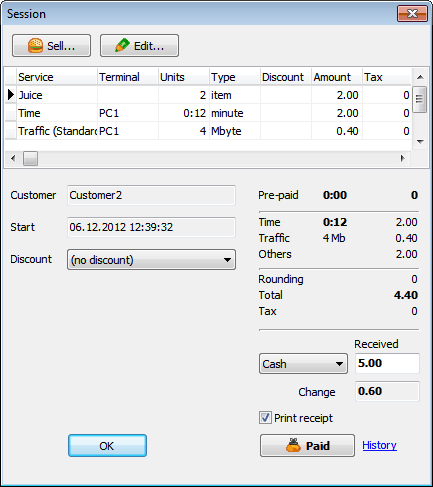
Pre-paid sessions are closed automatically unless there have not be any products sold.
Pause/resume session
You can pause any running customer session. The corresponding terminal is locked and any customer can't login via TrueCafe Client on this terminal until you resume the session.
You can also pause all active sessions or resume all paused sessions via TrueCafe main menu > Tasks > Pause sessions.
Browse sessions
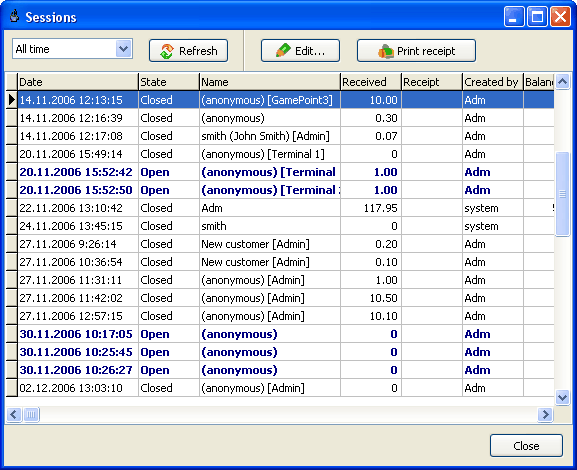
Sessions window (main menu > View > Sessions) displays today/yesterday/this week/etc. customer sessions.
Use the sessions window to re-print a receipt after a session has been closed.
Refunds
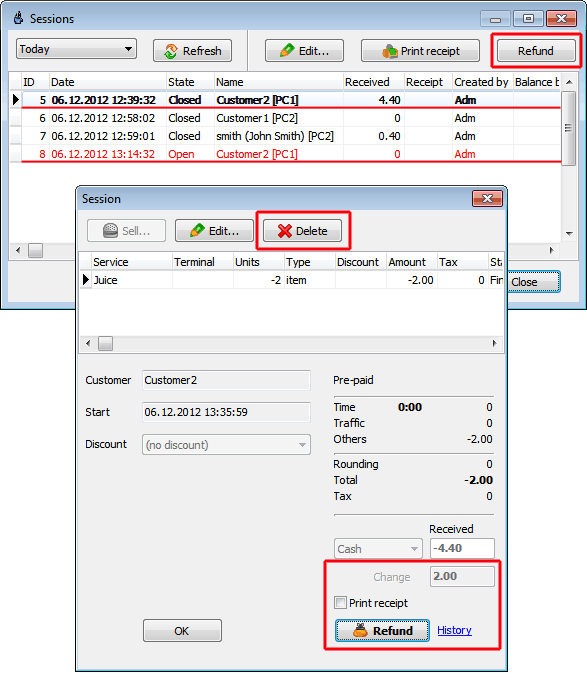
Use a refund (main menu > View > Sessions > Refund) when a customer returns you some purchased items or you have to rollback an entire customer session.
You can only refund closed sessions. When a refund session is created, use the Delete button to leave the refunded items only and click the Refund button. Refund sessions are highlighted with red.
Copyright © 1999-2013 TrueCafe, Ltd.
All rights reserved.