
|
Friendly Cyber Cafe SoftwareDocumentation |
Client Program
Lock terminal
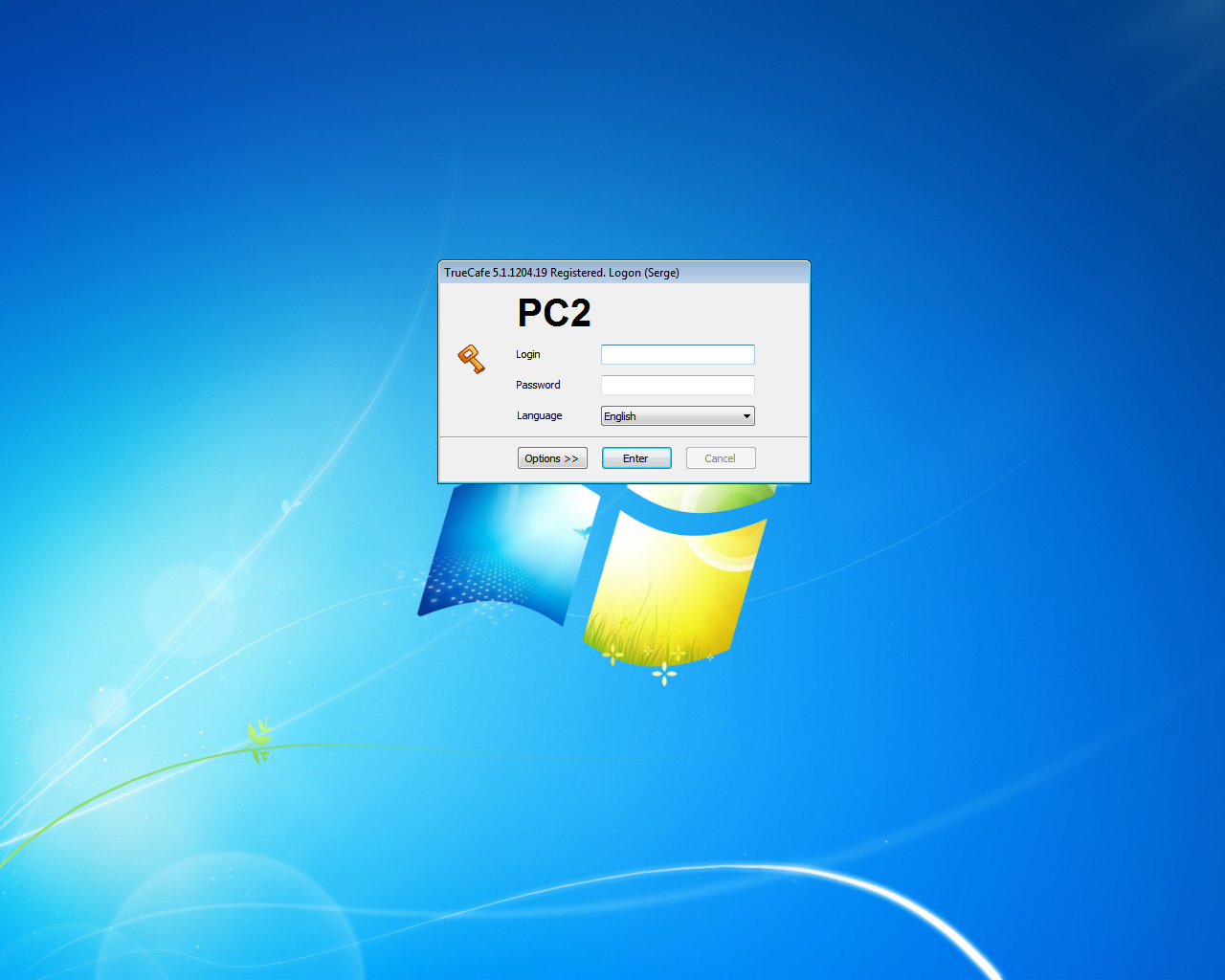
TrueCafe Client locks cyber cafe terminals.
Configure
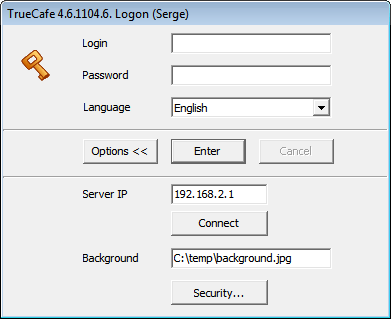
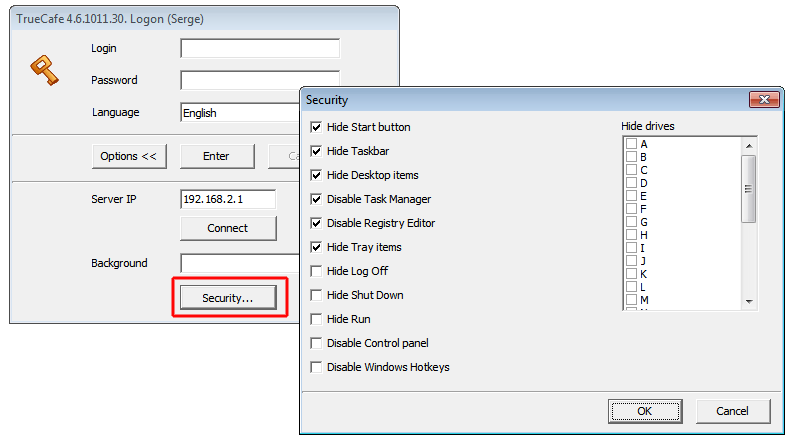
Press the "Options" button to display the configuration pane, enter an IP-address of the computer where TrueCafe Server is installed.
Enter a background picture file name.
Select a dial-up connection if you want to connect/disconnect it when a customer logs on/logs off. This is useful in case you have a remote terminal connected via GPRS, etc.
You can change options freely in the demo version TrueCafe. The options are protected with the unlocking code in the registered version.
Background
Use the Background option to specify either a picture or web page to be displayed on the TrueCafe Client background when the terminal screen is locked, e.g:
C:\temp\picture1.jpg (local path on the terminal computer)
http://www.website.com (don't forget to specify http://)
Display session info
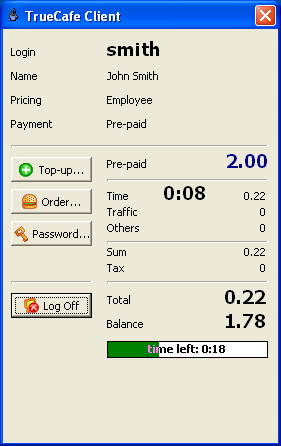
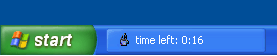
A terminal is unlocked when a customer enters his name/password or a cyber cafe operator starts a customer session remotely. When the terminal is unlocked, the session information window appears. A customer can top-up his balance using a ticket, change his password, order a snack/drink or stop the session.
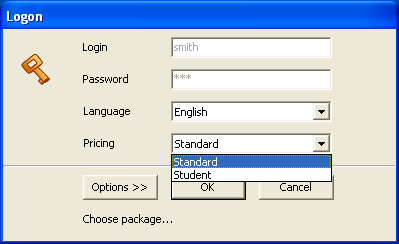
Select pricing while logging in
When a customer is logging in, the "Service package" list might appear. This depends on pricing configuration and happens if a customer doesn't have a default pricing package and there are more than one "Public" pricing packages. Please read the Pricing topic for more information.
Protect terminal
You can use the following features to secure your terminals:
- Hide Windows Start button
- Hide Taskbar
- Hide Desktop items
- Disable Task Manager
- Disable Registry Editor
- Hide Tray items
- Hide Log Off
- Hide Shut Down
- Hide Run
- Disable Control Panel
- Disable Windows hotkeys
Programs
If you assign a terminal profile to a terminal, then a tab set with the applications is displayed. Double-click on any icon to start the application:
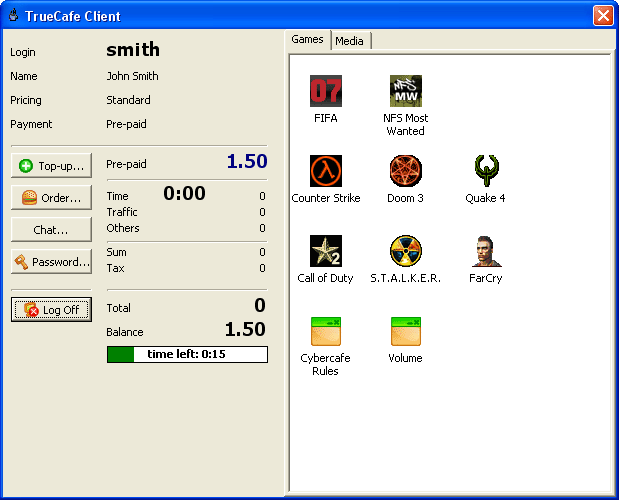
Hold Shift button when you double click on a program icon to start the program via "Run as... (administrator)".
Warn before session is finished
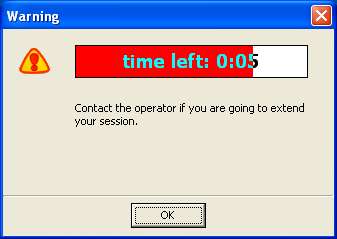
When a customer session has a critical amount of time/money left, a warning dialog is displayed and/or a warning sound file is played. Use TrueCafe options to select your sound files to be played or specify whether the warning dialog must be displayed.
Printing confirmation
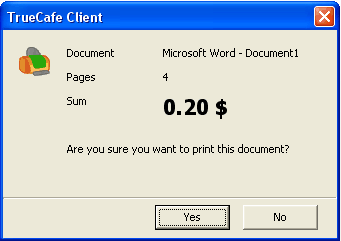
If the corresponding option is enabled, the confirmation dialog with pages/charge information is displayed when a customer prints a document.
Order drinks/snacks
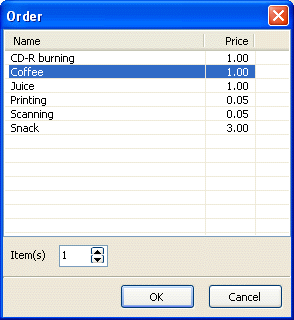
Customers can order goods, drinks, etc. from computers where they sit. They select an item in the list of services you configure in pricing.
You can disable the "Order" button in TrueCafe options.
End session (log off)
A customer can press the "Log Off" button to end his session and lock the terminal. The terminal is locked as well when a cyber cafe operator remotely ends the customer session in TrueCafe Administrator.
Use TrueCafe options to utilize the next log off features:
1. Close all running applications in order to prevent any private customer data from further browsing by the next user.
2. Clear Internet Explorer Temporary Internet Files and History.
3. Log off a session when a customer make Windows log off or shutdown.
4. Log off a session when a screensaver starts.
Run log on/off script
Run external programs when TrueCafe Client logs on/off. You can use customer_id, terminal_id, pricing_package_id command line parameters, which are replaced with actual values when the script is called.
Specify script command lines in the options
Client Watcher
TrueCafe Client is protected by Client Watcher system service. If a customer terminates TrueCafe Client process, Client Watcher starts it again in a few seconds.
TrueCafe. Friendly Internet Cafe Software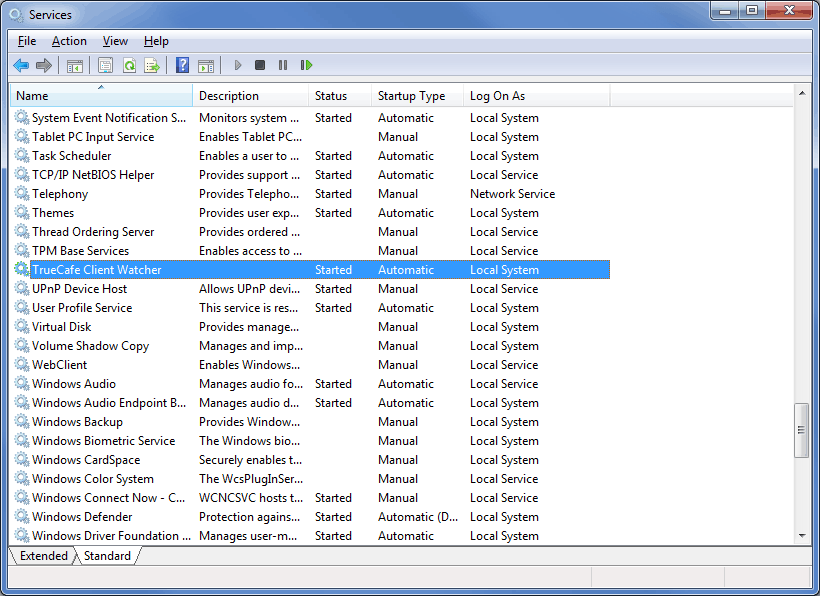
Copyright © 1999-2013 TrueCafe, Ltd.
All rights reserved.