
|
Friendly Cyber Cafe SoftwareDocumentation |
Quick Start
TrueCafe Server Manager
Start TrueCafe Server Manager utility to make sure that the server is running. If it is stopped, start it by pressing the "Start" button.

TrueCafe Administrator
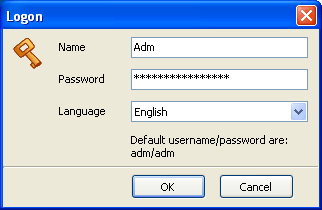
Start the TrueCafe application. Enter the user name and password on the "Logon" dialog:
 | Default administrator name/password are: Adm/adm |
Read more about TrueCafe main administrative window
Configure terminals.
Read more about terminal management
Configure pricing.
Read more about pricing management
Configure the receipt that can be printed when stopping a session.
Read more about customizing a receipt
Start and stop customer sessions, add services such as printing, scanning, etc.
Read more about session management
TrueCafe Client
| If you use a demo version of TrueCafe, you can unlock a terminal using the empty user name and closetruecafe keyword as a password. |
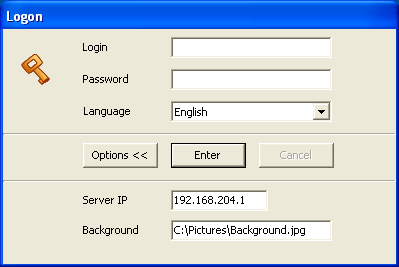
Configure Client on a terminal. Press the "Options" button to show or hide options pane. Set the server IP-address (IP-address of the computer where TrueCafe Server is installed).
Read more about TrueCafe Client
TrueCafe. Friendly Cyber Cafe Software
Copyright © 1999-2008 TrueCafe, Ltd.
All rights reserved.