
|
Friendly Cyber Cafe SoftwareDocumentation |
Valve Steam Support
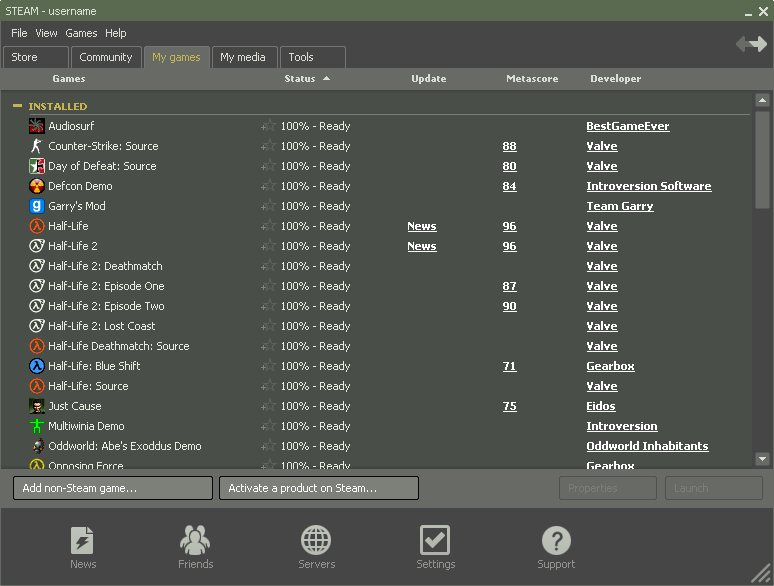
TrueCafe supports Steam (Valve Corporation), which is a content distribution system often used by cyber cafes to play computer games:
Setup
The most usual approach is to setup a separate Steam account for every game you provide for your customers in your Internet cafe.
Then you register your Steam accounts (login/password) in the TrueCafe CD-key management system and create a shortcut to your game on the TrueCafe Client program panel.
When a customer double clicks on a game shortcut, the CD-key management system takes an available Steam account from the stock and use it to start and login Steam.
More on the CD-Key management system
1. Add Steam Accounts
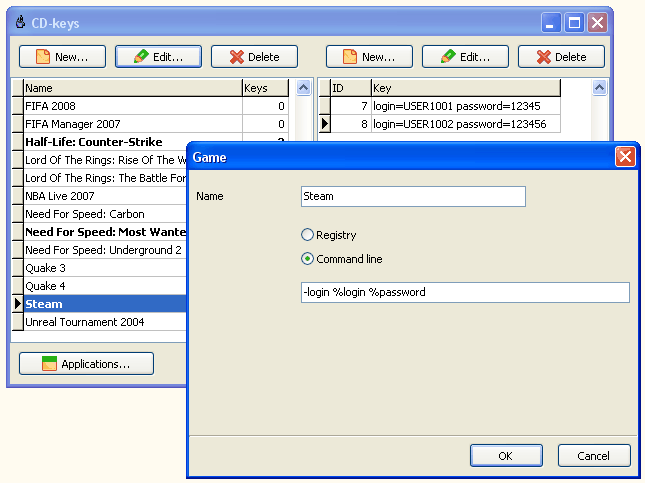
Open TrueCafe main menu > Setup > CD-keys and add your Steam accounts to the list in the following format:
login=steam_login password=steam_password
(login and password must not contain spaces)
2. Add Game Shortcut
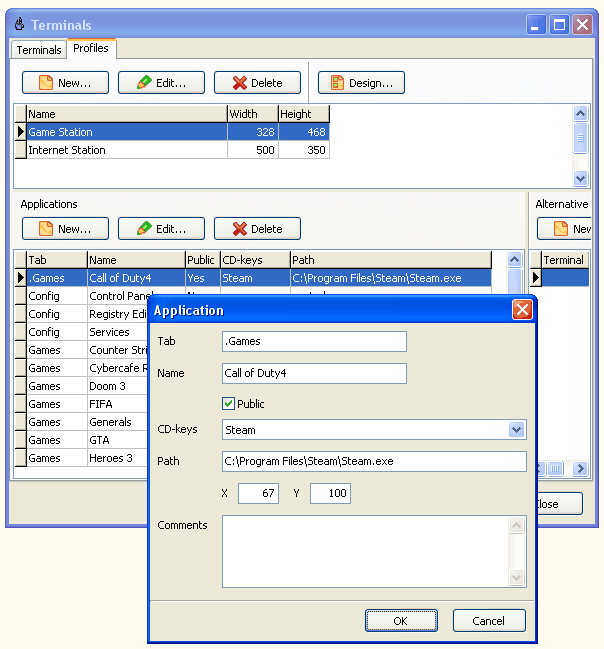
Add your game to the corresponding application profie main menu > Setup > Terminals > Profiles tab. Specify the path to Steam.exe (it's usually C:\Program Files\Steam\Steam.exe) and select CD-Keys = Steam:
3. Start Game
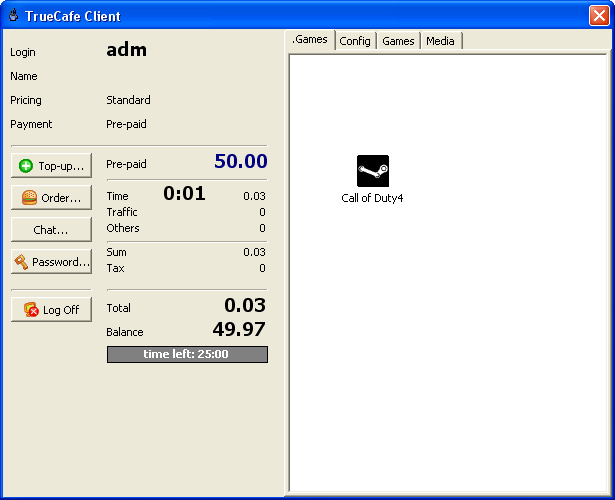
When you start a customer session on the terminal, TrueCafe Client displays your Steam game shortcut. Double click on it to login to the Steam account:
Create Steam Game Shortcut
If you don't want to let your customers select a game from the list, you can use the applaunch Steam parameter in your Application > Path field to run a game directly. For example, use the following command to run Counter-Strike:
Steam.exe -applaunch 10
Read more on the Steam command-line parameters on the following page:
http://developer.valvesoftware.com/wiki/Steam_Command_Line_Options
...and get the list of Steam application IDs here:
http://developer.valvesoftware.com/wiki/Steam_Application_IDs
TrueCafe. Friendly Internet Cafe SoftwareCopyright © 1999-2013 TrueCafe, Ltd.
All rights reserved.