
|
Friendly Cyber Cafe SoftwareDocumentation |
Tickets (Time Codes)
A ticket is a pre-generated customer account that can be printed, distributed, sold to a customer and then used by a customer to log in to a cyber cafe terminal or top-up his current balance.
Any ticket has one of the next state at any moment: created, printed, sold, in use, used up, deleted. A customer can log in to a terminal using a ticket which state is "sold" or "in use" only.
Create tickets
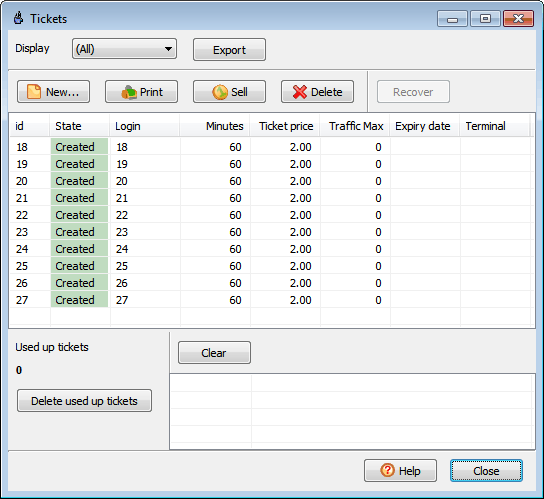
Press the "New" button to display "Create tickets" dialog.
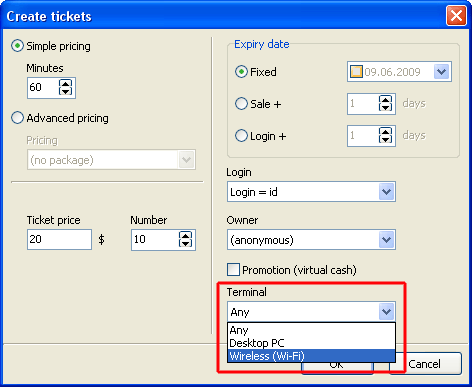
Specify whether the tickets can be used on PC, Wi-Fi or any terminals. Enter tickets minutes, max traffic amount, bandwidth limit, price and number of tickets to create.
Set the expiry date (optional): fixed date, sale date + X days or a first login date + X days, set time of day limit.
Tickets work on the date they expire, for example if the expiry date = 01 Jan, the tickets work on the 1st of Jan, but aren't available any more on the 2nd of Jan.
If you want to create a 1-day tickets, specify expiry date = login/sale date + 0 days.
Select a login generation method: login = ticket id or login = random.
Print tickets
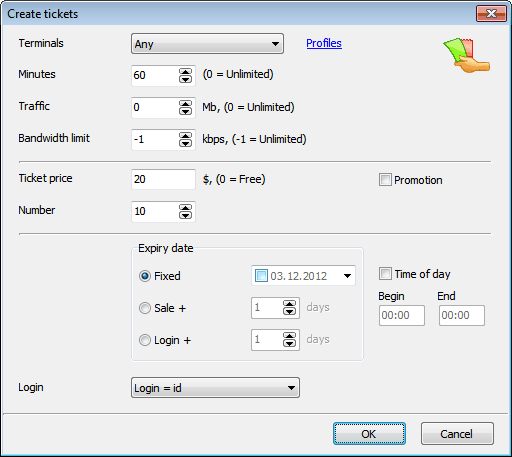
Select a number or tickets in the list and press the "Print" button.
Specify whether you want to print a number of tickets on the same page (e.g. A4) or cut every ticket (1 page = 1 ticket). The latter approach is useful when you print tickets on the receipt printer.
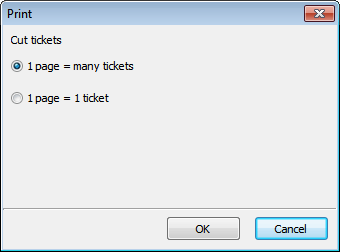
You can put the printed tickets in your cash drawer and sell them to your customers.
You can also export the list of tickets to Microsoft Excel or CSV for further external professional design/printing.
Sell tickets online
Online sale means you register the sale at the same time as you give a ticket to a customer.
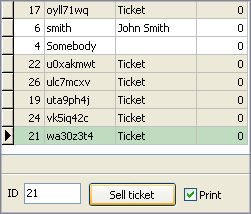
Select a ticket in the list on the main TrueCafe screen and press the "Sell" button. If "Print" is checked, the ticket is printed when the sale is made.
If you keep your tickets pre-printed (e.g. in a cash drawer), you can just enter a ticket number in the edit box and press the "Sell" button.
Sell tickets offline
Offline sale implies that you provide a customer with a ticket and register the sale a few later. For example, your agents may distribute printed tickets during a day and register all the sales in the evening.
Open the ticket desktop, select the sold tickets in the list and press the "Sell" button.
Quick tickets
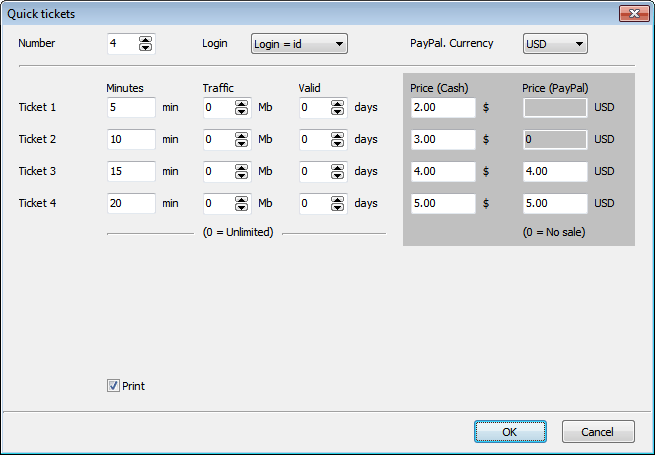
Configure a number of ticket templates which you can use to create, print and sell tickets to your guest customers or top-up existing customer accounts with one click.
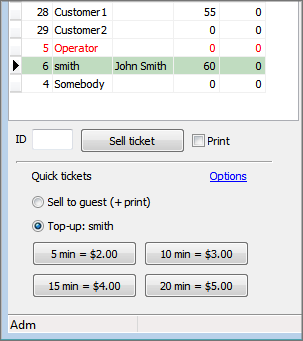
Specify ticket minutes, traffic amount and expiry days, cash and PayPal price. If PayPal price is not specified (= 0), a ticket is not available for credit card/PayPal sale.
Read more on credit card/PayPal support
Use tickets to log in
Enter the login/password printed on a ticket on the TrueCafe Client Login dialog.
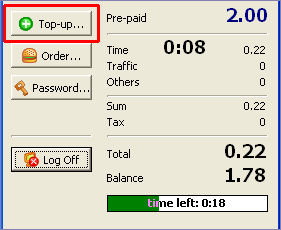
Use tickets to top-up balance
When a session is started, a customer can use a purchased ticket to top-up his balance in the TrueCafe Client:
Delete and recover tickets
Select tickets you want to delete and press the "Delete" button. If you need to recover a previously deleted ticket, select it and press the "Recover" button.
Use the "Delete all used up tickets" button to delete all tickets which have been completely used.
Promotional tickets
Use promo tickets to provide limited access for free in order to promote your shop, cafe, etc. When you sell a promo ticket, you don't actually collect any cash and the corresponding amount is only added to the promo totals (not cash totals) in the reports.
Wi-Fi/Desktop tickets
Create tickets which your customer can only use on either Wi-Fi terminals or desktop PCs. This is useful when you provide different charge rates for Wi-Fi and dekstop sessions.
Custom ticket layout
Customize your ticket print layout, add/remove captions, add your cafe logo, etc. Edit tickets.layout file in the TrueCafe folder. Preview ticket layouts.
TrueCafe. Friendly Internet Cafe Software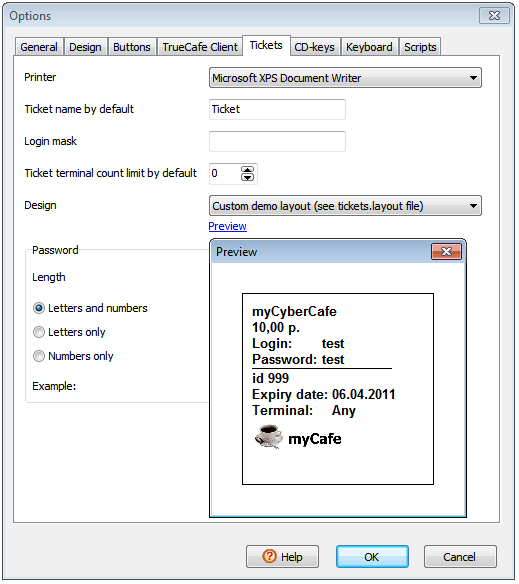
Copyright © 1999-2013 TrueCafe, Ltd.
All rights reserved.