
|
Friendly Cyber Cafe SoftwareDocumentation |
Printer Watcher
Printer Watcher automatically charges customers for printing on any printer in your cyber cafe. You can charge black-and-white and colour printing using different rates.
Install
Install Printer Watcher on a computer with a printer connected:

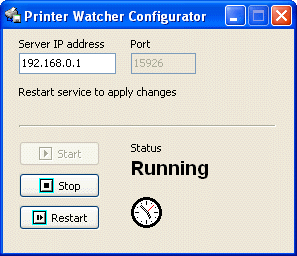
Start Printer Watcher Config application from TrueCafe Start Menu program group, enter TrueCafe server IP address and start service if it is stopped:
USB or Network printer?
USB printer: install TrueCafe Printer Watcher on the computer where your printer is connected to. Usually it makes sense to connect your printer to your TrueCafe Server computer.
Network printer: install your printer as a local one on the TrueCafe Server computer with Printer Watcher installed. Specify the MS Standard TCP\IP port with the printer IP address as the port of the printer. Every computer should connect to the printer via your server, e.g. \\ServerName\PrinterName.
Configure
1. TrueCafe main menu > View > Print Jobs: print a document on your printer and make sure that you see it in the list.
The documents are highlighted depending on the document's state: not charged document background is painted in grey, cancelled document font - in red.
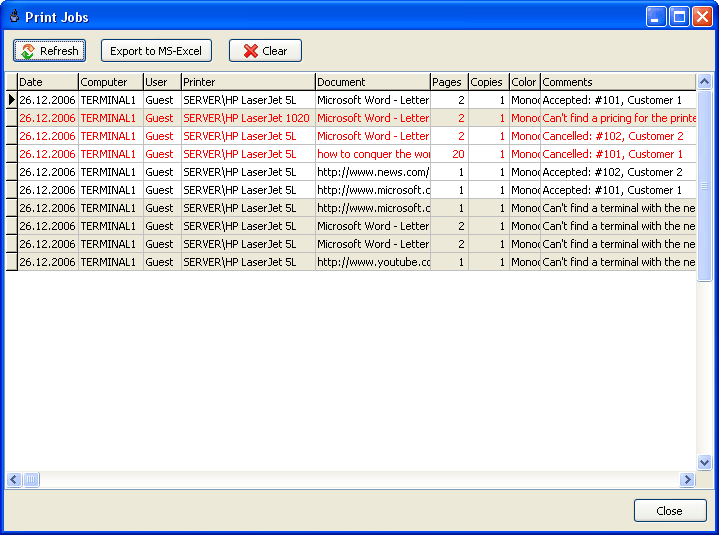
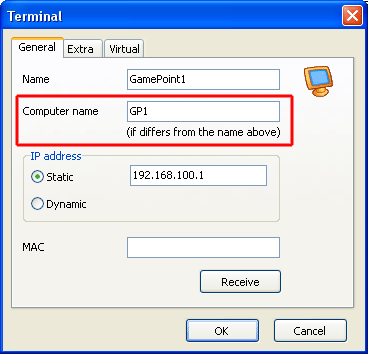
2. Make sure that the value in the "Computer" column in the "Print Jobs" list meets the ip address or name or "computer name" of any of your terminals.
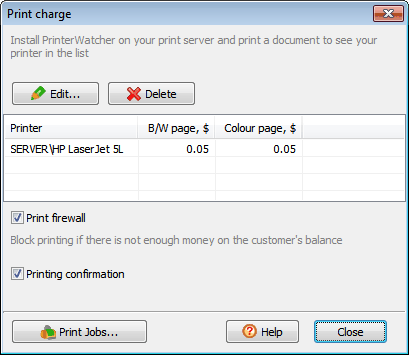
3. Specify page prices, TrueCafe main menu > Setup > Print billing:
Charge
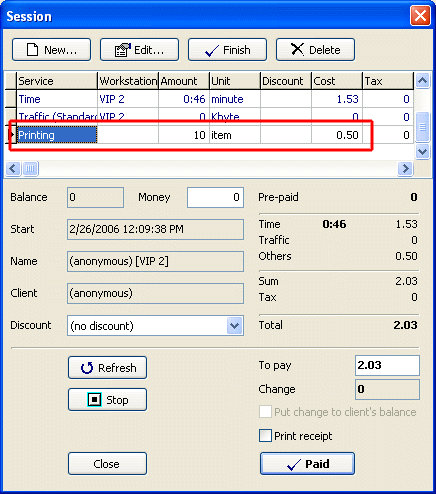
When a customer prints on a printer that is being monitored by Printer Watcher, he/she is automatically charged for printing:
Printing confirmation
When this option is enabled, TrueCafe Client displayes the pages/charge information dialog when a customer prints a document. A customer can then accept or decline the printing.
Print firewall
Stop printing on any printer in your cyber cafe when not enough money left on a customer's balance.
When a customer sends a document to a printer, TrueCafe calculates the document pages/copies and amount charged. If the customer doesn't have enough amount on the balance, the printing is stopped and a warning message is displayed on the customer's terminal.
TrueCafe. Friendly Internet Cafe SoftwareCopyright © 1999-2013 TrueCafe, Ltd.
All rights reserved.