
|
Friendly Cyber Cafe SoftwareDocumentation |
Installation
Run the installation program, select a directory where you want to install TrueCafe. It is recommended to use a local computer or a domain administrator account to install the software.
Install TrueCafe Server
Select the "Server, Administrator,.." item to install the core server components.
Select the "Traffic Meter" item if you want to calculate network traffic and include its cost to a user's bill. This option installs the traffic calculation components including the WinPcap library (www.winpcap.org) that is used for network packets capturing.
Install Printer Watcher on a computer with a printer connected to automatically charge your customers for printing.

Use Windows Start Menu to start any application from TrueCafe program group:

Install TrueCafe Client
Select the "Client.." item to install TrueCafe Client software. Please note that TrueCafe Client locks the terminal, so do not install this component on a computer that is critical to your business unless you are familiar with TrueCafe. You can use the closetruecafe keyword as a password to close the demo version of TrueCafe Client and unlock your computer.
Known issues. Windows XP
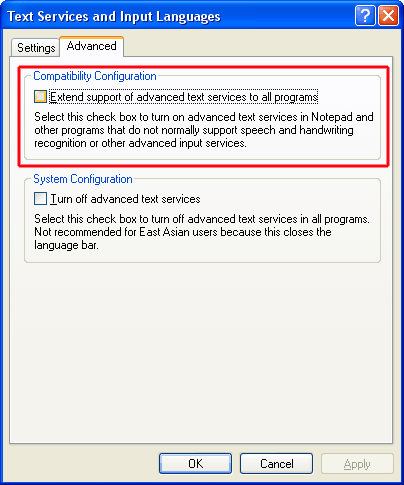
TrueCafe Client may conflict with your language settings. Please ensure that "Text Services and Input Languages -> Advanced -> Extend support of advance text services to all programs" options is turned off:
Known issues. Skype
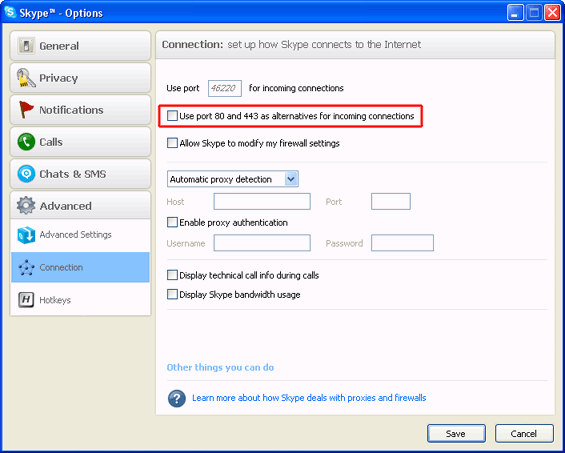
If you use TrueCafe Wi-Fi billing feature, it may conflict with Skype installed on your server.
Open Skype main menu > Tools > Options > Advanced > Connections, disable
Upgrading to new version
You can install a new version of TrueCafe over the previous one,
upgrading both server and client software.
TrueCafe database is upgraded automatically by Database Workshop utility
when the installation is over.
In case you get an error message upgrading the database,
please download and install the latest version of
Microsoft Data Access components
If you upgrade from version 4.0 or earlier:
TrueCafe working files (your database, settings, backups, etc.) are now located in the application data folder instead the TrueCafe installation folder as it were in the previous versions. So after you install a new version, please do the following:
1) Stop all TrueCafe services (Conrol Panel > Administrative tools > Services).
2) Copy (overwrite) backup and db folders and .ini files from your previous TrueCafe folder into:
- Windows XP: C:\Documents and Settings\All Users\Application Data\TrueCafe\
- Windows Vista: C:\ProgramData\TrueCafe\
3) Run TrueCafe Database Workshop and update your database (Windows Start Menu > TrueCafe > Database Workshop).
4) Start all TrueCafe services (Conrol Panel > Administrative tools > Services) again.
Uninstall TrueCafe
Use the "Uninstall" item from the TrueCafe program group to uninstall the software. If you installed TrueCafe TrafficMeter, you should manually uninstall the WinPcap library then. WinPcap might be used by the other programs, so please uninstall it if you are sure that it had not been installed before TrueCafe was. You can uninstall the WinPcap using the "Uninstall" item from the WinPcap Start Menu program group.
 | TrueCafe database isn't deleted during the uninstallation. You have to delete it manually. |
TrueCafe. Friendly Cyber Cafe Software
Copyright © 1999-2008 TrueCafe, Ltd.
All rights reserved.