


TrueCafe 4.2 is released. Download new version
We appreciate any comments about the system you send to us. Participation in a beta-testing allows you to get a TrueCafe license with a discount.
Key new features
Wi-Fi hotspot support | |
 |
Charge wireless laptop sessions in your cyber cafe. TrueCafe monitors network connections and redirects customers to a login web page. Customers use their tickets login info to start sessions. In order to display a session info a customer has to type your server computer name in his web browser address bar. He can use the info page to log off. You don't have to add Wi-Fi terminals manually. When a customer session is started / stopped, the corresponding terminal icon is automatically added / removed on the TrueCafe server side. Use Tools > Wi-Fi menu to edit Wi-Fi settings. Your Wi-Fi terminals traffic has to be directed via your TrueCafe Server computer. You should use Internet Connection Sharing to connect your WAN and Wi-Fi/LAN network adapters: Internet -> Server WAN network card -> Internet Connection Sharing -> Server Wi-Fi/LAN network card -> Wi-Fi terminals |
Terminal-dependent pricing | |
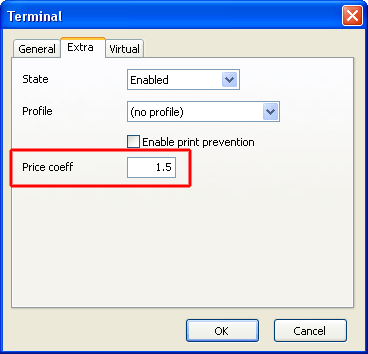 |
Use a terminal pricing multiplier to increase or decrease your basic price on some terminals. Default values is 1, which means "no adjustment". For example, if your basic price is $2 per hour, you can specify the price coeff = 1.5 for your VIP computers, which means $2 * 1.5 = $3 per hour. |
Ticket pricing wizard | |
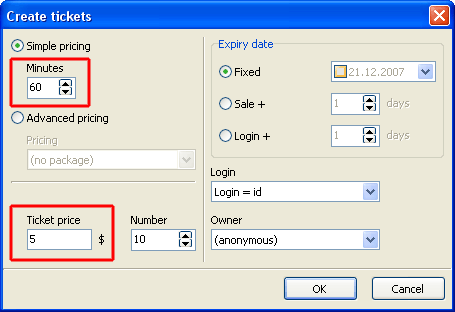 |
Create tickets in a very simple way. Specify tickets minutes and price (e.g. 60 minutes = $5). |
Refunds | |
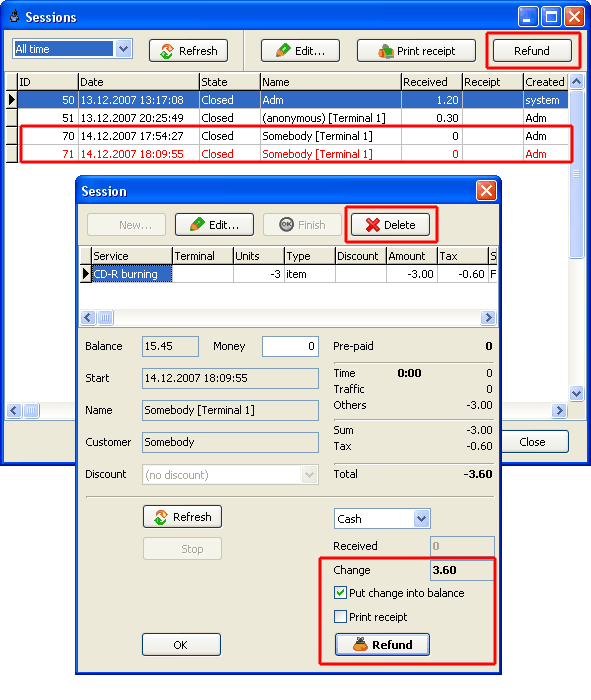 |
Use refunds when your customer returns you some purchased items or you have to rollback an entire customer session. Refund feature is available on the sessions window (main menu > View > Sessions). You can only refund closed sessions. When a refund session is created, use Delete button to leave the refund items only. Refund sessions are highlighted with red color in the list. |
Continue session when terminal starts | |
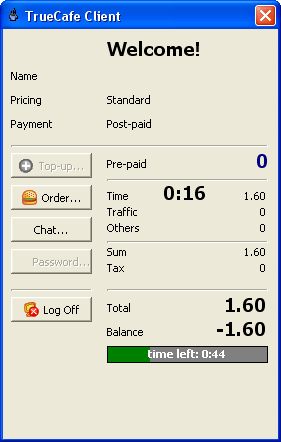 |
When a customer session is started and you start or restart the terminal, TrueCafe Client automatically detects the session and unlocks the terminal. |
Disable Client buttons | |
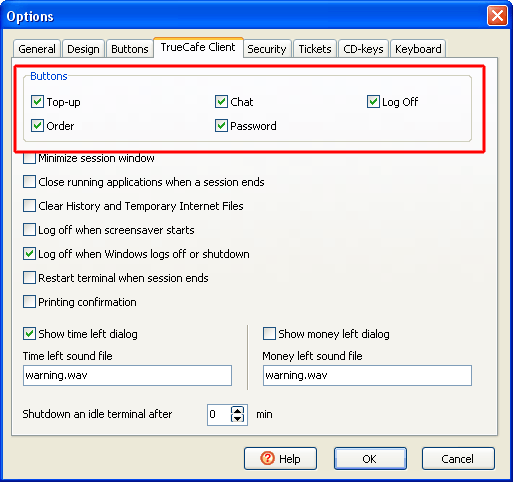 |
You can now disable buttons such as Top-up, Password and Log off on Client session window. |
Minimize Client session window | |
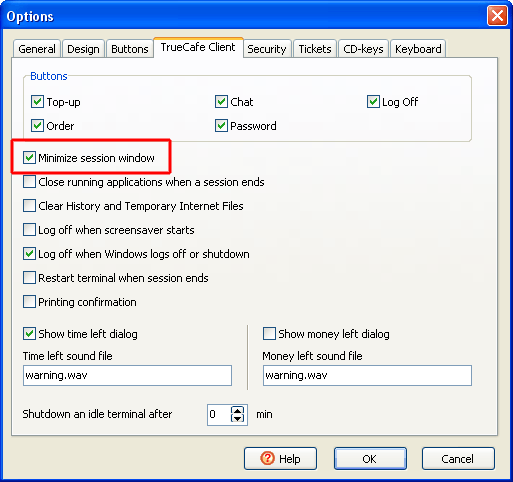 |
Use this option to minimize TrueCafe Client session window after a terminal is unlocked. |
Time left warning on server side | |
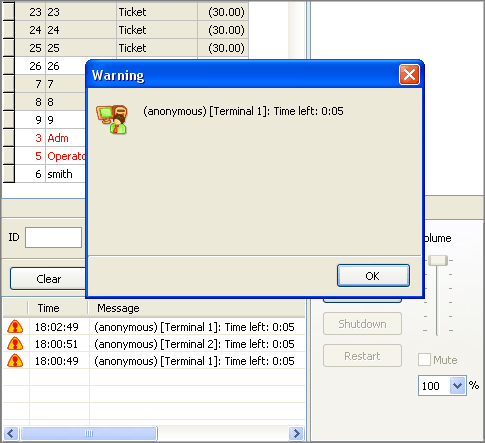 |
Show time left message and play warning sound not only on the client side but on the server side as well. Use TrueCafe options to enable this feature. |
Terminal screenshot security | |
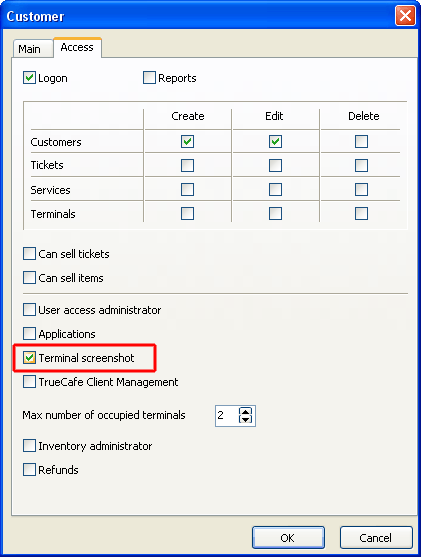 |
Disable the terminal screenshot panel if you don't want an operator to view your customer terminals screenshots. |